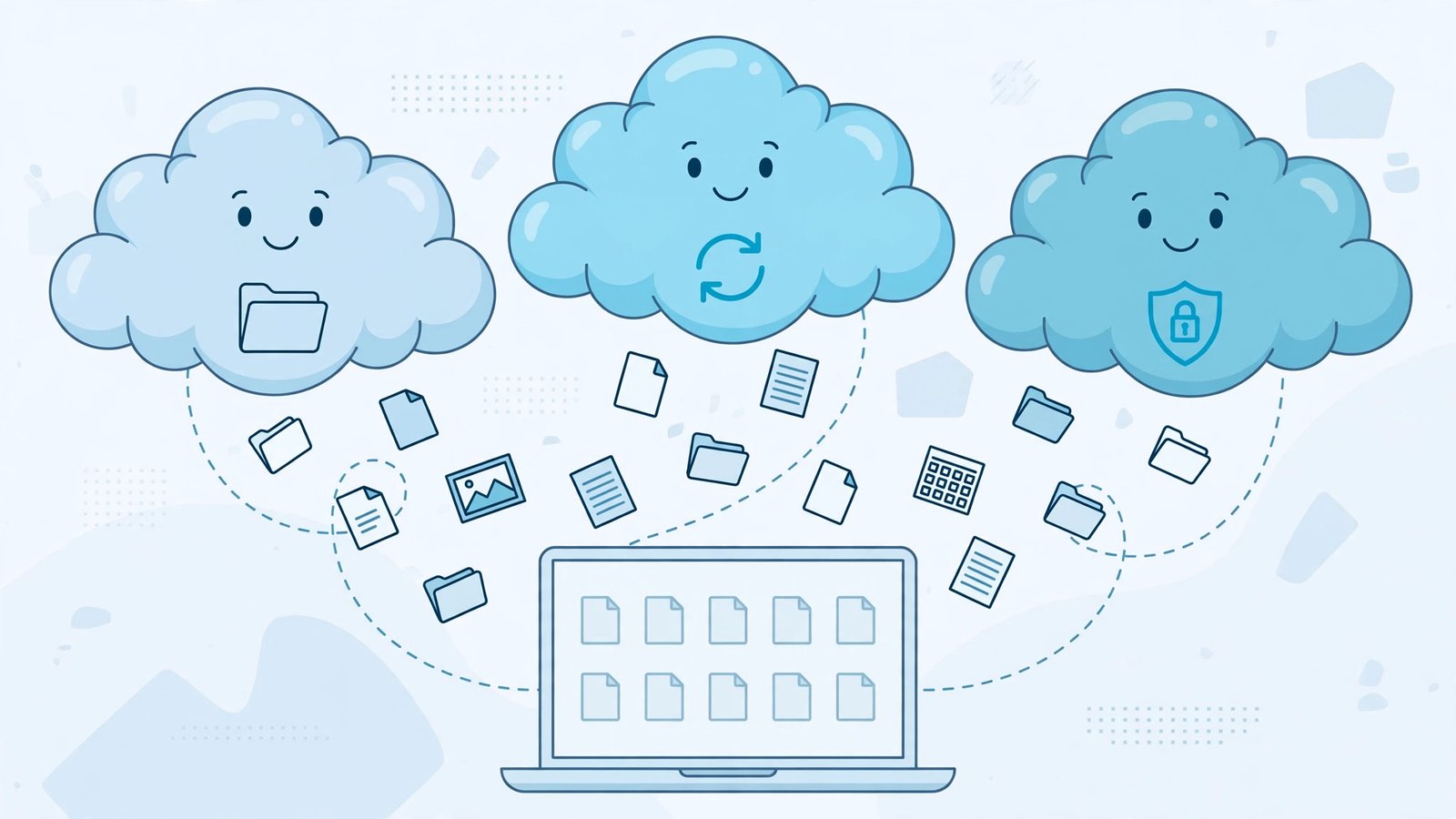
Your files live everywhere: photos on your phone, documents on your laptop, and attachments buried in email. When you need the right version at the right moment, that mess quickly becomes a problem.
Cloud storage solves it by keeping your files online, synced across your devices, and easy to share. Three names dominate the market: Google Drive, Dropbox, and OneDrive. All three are reliable, all three offer free tiers, and all three can work well. So which one should you choose? This guide compares them honestly on storage, collaboration, apps, security, and value, so you can pick the best fit for how you actually work.
Why Cloud Storage Matters for Work and Life
Cloud storage is more than a backup folder on the internet. Used well, it changes how you work:
- Access anywhere: Start a document at your desk, review it on your phone, and present it from a borrowed laptop, without USB sticks or emailing files to yourself.
- Automatic backup: If a laptop is lost, stolen, or fails, your files remain safe online and can be restored to a new device.
- Easy sharing: Send a link instead of a large attachment, control who can view or edit, and stop worrying about file size limits.
- Real collaboration: Several people can work on the same document at the same time, with changes saved automatically and older versions kept.
The right service depends less on headline storage numbers and more on the apps you already use and the people you work with.
Quick Comparison at a Glance
- Google Drive: Best for people who live in Gmail, Google Docs, Sheets, and Slides. Generous free storage compared with rivals, excellent real-time collaboration, and strong search.
- Dropbox: Best for fast, reliable syncing and sharing large files with clients and freelancers. Clean, simple, and focused on files rather than a full office suite.
- OneDrive: Best for Windows and Microsoft 365 users. Deeply built into Windows and Office apps such as Word, Excel, and Teams, and often excellent value when bundled with Microsoft 365.
Prices and plan details change often, so always check current plans on each provider’s website before you buy.
Google Drive: Best for Google Workspace Users
Google Drive is the storage service built into every Google account. It powers Gmail attachments, Google Photos backups, and the Google Workspace tools that millions of small businesses use every day.
Strengths
- Outstanding collaboration: Docs, Sheets, and Slides were designed for several people editing together. Comments, suggestions, and version history are clear and easy to use.
- Powerful search: Google can search inside many documents and even find text in scanned images and photos, which saves real time in large folders.
- Works everywhere: Excellent web, Android, iPhone, Windows, and Mac apps, with a smooth experience in the browser and no software required for basic editing.
- Generous free tier: Its free allowance has historically been larger than Dropbox’s and OneDrive’s, although shared across Gmail and Photos, so heavy email users can fill it faster than expected.
Weaknesses
- Offline editing can be fiddly in the browser compared with traditional desktop apps.
- Organisation takes discipline: Because sharing is so easy, shared folders from many people can make Drive feel messy without a clear naming system.
Best for: Freelancers, schools, startups, and teams already using Gmail and Google Workspace, and anyone who collaborates on documents daily.
Dropbox: Best for Sync and Sharing Large Files
Dropbox was one of the first cloud storage services, and its reputation is built on one thing: syncing files quickly and reliably, even when those files are large.
Strengths
- Fast, dependable sync: Dropbox only uploads the parts of a file that changed, so large video, design, and audio files update quickly between devices.
- Excellent sharing controls: Create links with passwords and expiry dates, request files from clients who do not use Dropbox, and see who viewed a shared file.
- Strong version history and recovery: Deleted files and earlier versions can be restored for a generous period on paid plans, which is a lifeline after an accidental overwrite.
- Platform neutral: Dropbox does not try to lock you into one office suite. It integrates well with Google, Microsoft, Adobe, and hundreds of other tools.
Weaknesses
- Small free tier compared with rivals, so most serious users need a paid plan sooner.
- Cost can add up: Dropbox often positions itself as a premium product, and team plans may cost more than a bundled Microsoft or Google subscription offering similar storage.
- Its own editing tools are lighter than Google Docs or Microsoft Office, although integrations cover most needs.
Best for: Creative professionals, agencies, and small teams who share large files with clients, work across different platforms, and value simple, rock-solid sync above all else.
OneDrive: Best for Windows and Microsoft 365 Users
OneDrive is Microsoft’s cloud storage, built directly into Windows and tightly connected to Word, Excel, PowerPoint, Outlook, and Teams. If your business already pays for Microsoft 365, you may already have substantial OneDrive storage included.
Strengths
- Seamless Windows integration: Files appear in File Explorer, download on demand, and sync in the background without extra software to manage.
- Excellent value with Microsoft 365: Bundled plans typically combine generous storage with the full Office apps, making the overall package hard to beat for Office users — check current bundles before buying storage separately.
- Strong business tools: Through SharePoint and Teams, OneDrive fits well into company file structures, permissions, and compliance needs.
- Personal Vault: An extra-protected folder for sensitive documents such as passports and financial records, requiring additional verification to open.
Weaknesses
- Less compelling outside the Microsoft world: Mac and Chromebook users can use OneDrive, but the experience feels most natural on Windows.
- Sharing can confuse newcomers because personal OneDrive, OneDrive for Business, and SharePoint behave slightly differently.
- The free tier is modest, so it works best as part of a paid Microsoft 365 subscription.
Best for: Windows users, businesses standardised on Microsoft 365, and anyone who works mainly in Word, Excel, and PowerPoint.
Security, Privacy, and Reliability Compared
All three providers encrypt files in transit and while stored, offer two-factor authentication, and run large, professionally managed data centres that are far more reliable than a single office drive. Your biggest risk is usually not the provider — it is your own account security.
- Turn on two-factor authentication for whichever service you choose, without exception.
- Use a unique, strong password stored in a password manager.
- Review shared links regularly and remove access for people who no longer need it.
- Remember that sync is not backup. If a file is deleted or encrypted by ransomware, the change can sync everywhere. Version history helps, but important business data still deserves a separate backup.
Which One Should You Choose?
Choose Google Drive if…
You and your team live in Gmail and Google Docs, you want the easiest real-time collaboration, and you prefer working in a browser with nothing to install.
Choose Dropbox if…
You regularly move large files, work with clients on different systems, and want the fastest, simplest sync and sharing experience, even if it costs a little more.
Choose OneDrive if…
You already use Windows and Microsoft 365, you want storage and Office apps in one subscription, and you prefer files that behave like normal folders in Windows.
Frequently Asked Questions
Can I use more than one cloud storage service?
Yes, and many people do — for example, OneDrive for work documents and Google Photos for personal pictures. Just be clear about which service holds what, or you will waste time searching three places for one file.
Is free cloud storage enough?
For light document use, often yes. Photos, videos, and large work files fill free tiers quickly, however. When you approach the limit, a paid plan is usually cheaper and safer than juggling multiple free accounts.
Are my files safe if the provider has a problem?
Major providers copy data across multiple data centres, so outright loss is extremely rare. The more realistic risks are account lockout, accidental deletion, and ransomware, which is why two-factor authentication and a separate backup matter.
How do I switch from one service to another?
Download your files, upload them to the new service, recreate folder sharing for your team, and only delete the old copies after verifying everything arrived intact.
Conclusion: Match the Storage to Your Tools
There is no single winner in cloud storage — there is only the best match for your habits. Google Drive leads on collaboration and search, Dropbox leads on sync and client sharing, and OneDrive leads on value and integration for Microsoft users. Pick the one that fits the apps you already open every morning, protect the account properly, and your files will simply be there whenever and wherever you need them.
Want more clear, practical comparisons of the tools that run your business? Subscribe to Go Digital Professional and get our latest software guides, reviews, and tips delivered straight to your inbox — no hype, just advice you can use.