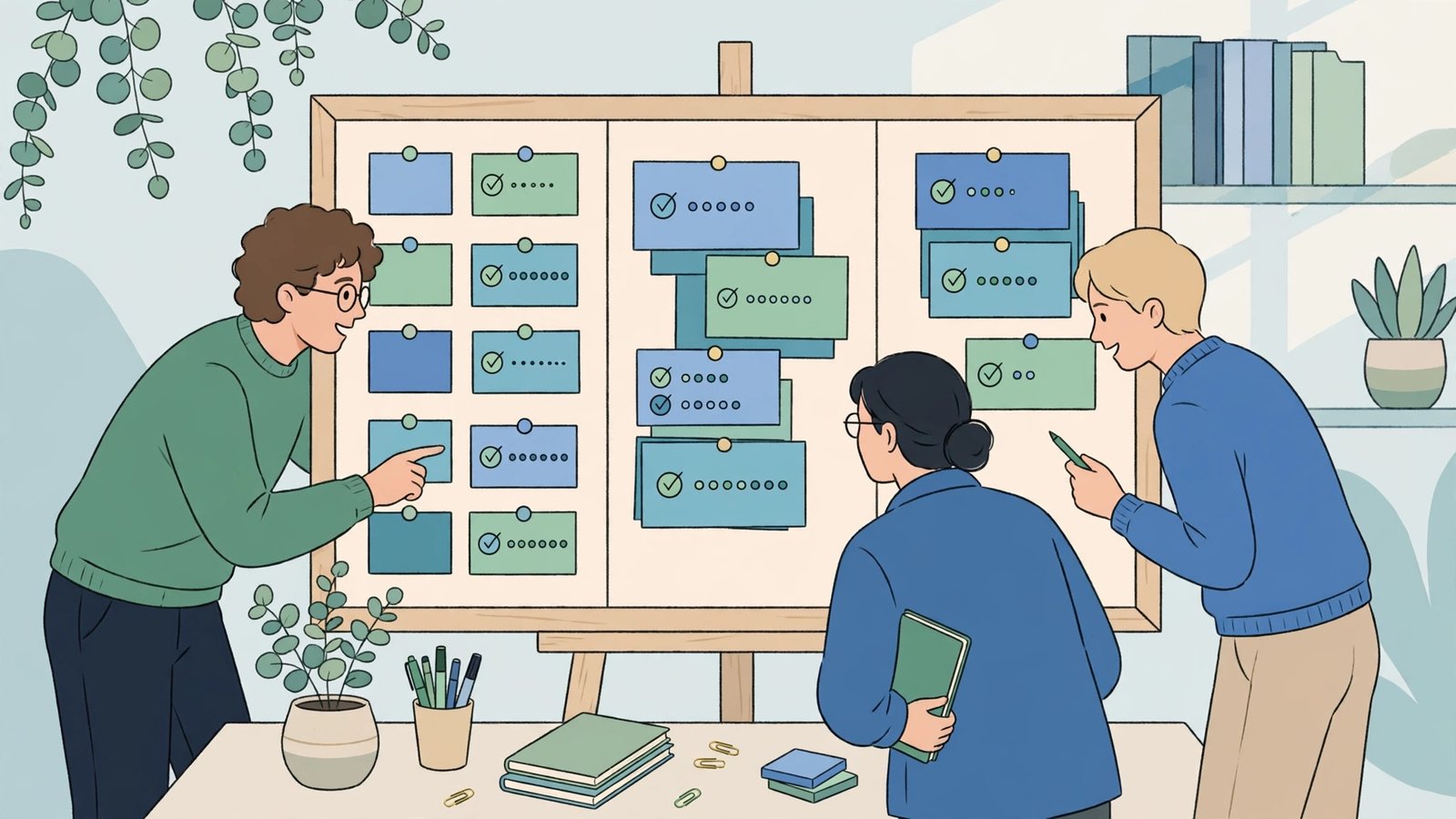
Small teams rarely fail because people do not work hard. They fail because work falls through the cracks: a task mentioned in a meeting is forgotten, a deadline lives in one person’s inbox, and nobody is quite sure who is doing what by when.
Project management software fixes that by giving your team one shared place for tasks, deadlines, files, and updates. The problem is choice. There are dozens of tools, all promising to transform your productivity. This guide focuses on the options that genuinely suit small teams in 2026, explains what each does best, and shows you how to choose and roll out one tool without overwhelming your team.
What Small Teams Actually Need
Before comparing names, be honest about your needs. Most small teams do not need enterprise software with hundreds of settings. They need:
- A clear task list: Every task has an owner, a due date, and a visible status.
- A visual view of work: A board, timeline, or calendar that shows at a glance what is happening this week.
- Simple collaboration: Comments, file attachments, and notifications inside the task, not scattered across email and chat.
- Low learning curve: If a tool needs a training course, a busy small team will quietly stop using it.
- Room to grow: Templates, automations, and integrations you can switch on later as projects get more complex.
- Sensible pricing: Per-user costs add up fast, so check current plans carefully — prices change often — and count everyone who truly needs a full account.
Trello: Best for Simple, Visual Boards
Trello popularised the digital Kanban board: cards on lists such as To Do, Doing, and Done, dragged across as work progresses. It remains one of the easiest tools for a team to understand in minutes.
Strengths
- Instantly visual: Anyone can open a board and see the state of a project without reading a report.
- Very easy to learn: Cards, checklists, labels, and due dates cover most everyday work, from content calendars to office moves.
- Power-Ups and automations: Connect calendars, cloud storage, and other apps, and automate repetitive moves and reminders with its built-in automation.
- Generous free tier for small, simple projects, although limits apply, so check current terms.
Weaknesses
- Struggles with complex projects: Large boards become crowded, and dependencies between tasks are limited compared with more structured tools.
- Reporting is basic without add-ons, so managers wanting detailed workload views may outgrow it.
Best for: Teams of two to ten who want a simple, friendly board for straightforward projects and recurring tasks.
Asana: Best for Growing Teams and Structured Work
Asana is a step up in structure. The same project can be viewed as a list, board, timeline, or calendar, and tasks can include subtasks, dependencies, and custom fields.
Strengths
- Multiple views: Planners get timelines, team members get simple lists, and everyone works from the same data.
- Strong task detail: Dependencies show what is blocked and why, which prevents the classic problem of discovering a delay too late.
- Workload and goals features on higher plans help managers spot overloaded colleagues before burnout happens.
- Excellent templates and integrations with tools such as Google Workspace, Microsoft 365, Slack, and many more.
- Automation rules that assign tasks, move sections, and send reminders without manual chasing.
Weaknesses
- More to learn: New users can feel overwhelmed by options if you switch everything on at once.
- Costs rise quickly as you add users and move to advanced plans, so review current pricing and who really needs a paid seat.
Best for: Growing teams juggling several projects at once, especially marketing, operations, and product teams with interdependent tasks.
Other Strong Options Worth Considering
ClickUp: Best all-in-one value
ClickUp packs tasks, documents, goals, whiteboards, and dashboards into one app, with a feature-rich free plan. It suits teams that want one tool for almost everything and are willing to spend time configuring it. That flexibility is also its risk: without discipline, it can become complicated.
Monday.com: Best for visual reporting
Monday.com uses colourful boards and dashboards that managers and clients find easy to read. It works well for tracking pipelines, campaigns, and operational processes, and its automations are approachable. Watch seat-based pricing carefully as your team grows, and verify current plan minimums.
Notion: Best for combining notes and tasks
Notion blends documents, wikis, and lightweight project databases. It is ideal for small teams whose work is knowledge-heavy — startups, content teams, and consultancies — who want meeting notes, handbooks, and task boards in one place. Dedicated project tools still beat it for complex timelines and dependencies.
Microsoft Planner and To Do: Best for Microsoft 365 teams
If your business already pays for Microsoft 365, Planner offers simple board-based planning inside Teams at no extra tool cost, with To Do for personal tasks. It will not match Asana for advanced features, but using what you already own is often the smartest first step.
Basecamp: Best for simple, flat-rate simplicity
Basecamp focuses on communication — message boards, to-do lists, schedules, and file storage — with a famously simple approach and, historically, straightforward pricing models. It suits small businesses and client work where calm communication matters more than detailed project analytics. Check its current pricing structure before deciding.
How to Choose: A Five-Step Process
Step 1: Name your biggest pain
Missed deadlines, unclear ownership, too many status meetings, or client chaos? Pick the one problem the tool must solve first. Software chosen to fix everything usually fixes nothing.
Step 2: Shortlist two tools, not six
Use the descriptions above to pick two realistic candidates. Evaluating more wastes time and confuses the team whose opinion matters most.
Step 3: Run a real pilot for two weeks
Put one live project into each tool with three to five team members. Use real deadlines. At the end, ask a simple question: which tool did people open without being reminded?
Step 4: Check integrations and total cost
Confirm the winner connects to your email, calendar, chat, and file storage. Then calculate the true yearly cost for your whole team on the plan you actually need — prices change often, so confirm on the vendor’s site.
Step 5: Roll out with simple rules
Agree on three conventions: every task gets an owner and a date, updates go in the tool not in private messages, and completed tasks are closed promptly. Start with one project template, review after a month, and add automations only when a repeated manual step annoys you twice.
Mistakes That Make Project Tools Fail
- Choosing software before agreeing on process: A tool cannot fix unclear responsibilities; it will only display the confusion more neatly.
- Creating too many projects and fields: Start minimal. You can add structure later, but you cannot easily remove complexity people have learned to ignore.
- Keeping a shadow system: If the real plan still lives in the manager’s spreadsheet, the team will stop trusting and updating the tool.
- No champion: Nominate one person to answer questions, tidy boards weekly, and share quick wins in the first month.
Frequently Asked Questions
Do small teams really need project management software?
If work involves more than two people, shared deadlines, or clients waiting on deliverables, yes. Below that, a shared task list may be enough. The moment you hear “I thought you were doing that,” you need a proper tool.
Should we start with a free plan?
Yes, for your pilot. Free plans reveal whether your team likes the tool’s basic feel. Move to a paid plan when you need automations, timelines, advanced permissions, or reporting — not before.
How do we get a reluctant team to use it?
Involve them in the pilot, keep the setup simple, and make the tool the only place where tasks are assigned. If work given in chat or email “doesn’t count,” habits change within weeks.
Can one tool handle both projects and everyday tasks?
Usually, yes. Use projects for larger initiatives and a recurring board or list for routine work such as weekly reports, maintenance, and admin. Most tools above handle both patterns comfortably.
Conclusion: The Best Tool Is the One Your Team Opens
Trello wins on simplicity, Asana on structured teamwork, ClickUp on all-in-one features, Monday.com on reporting, and Notion on combining notes with tasks. None of them will help, however, if your team does not use it daily. Shortlist two, pilot them on real work, agree on a few simple rules, and commit.
Ready to run calmer, better-organised projects this year? Subscribe to Go Digital Professional for more practical, plain-English guides to software, productivity, and growing your business online — delivered straight to your inbox.