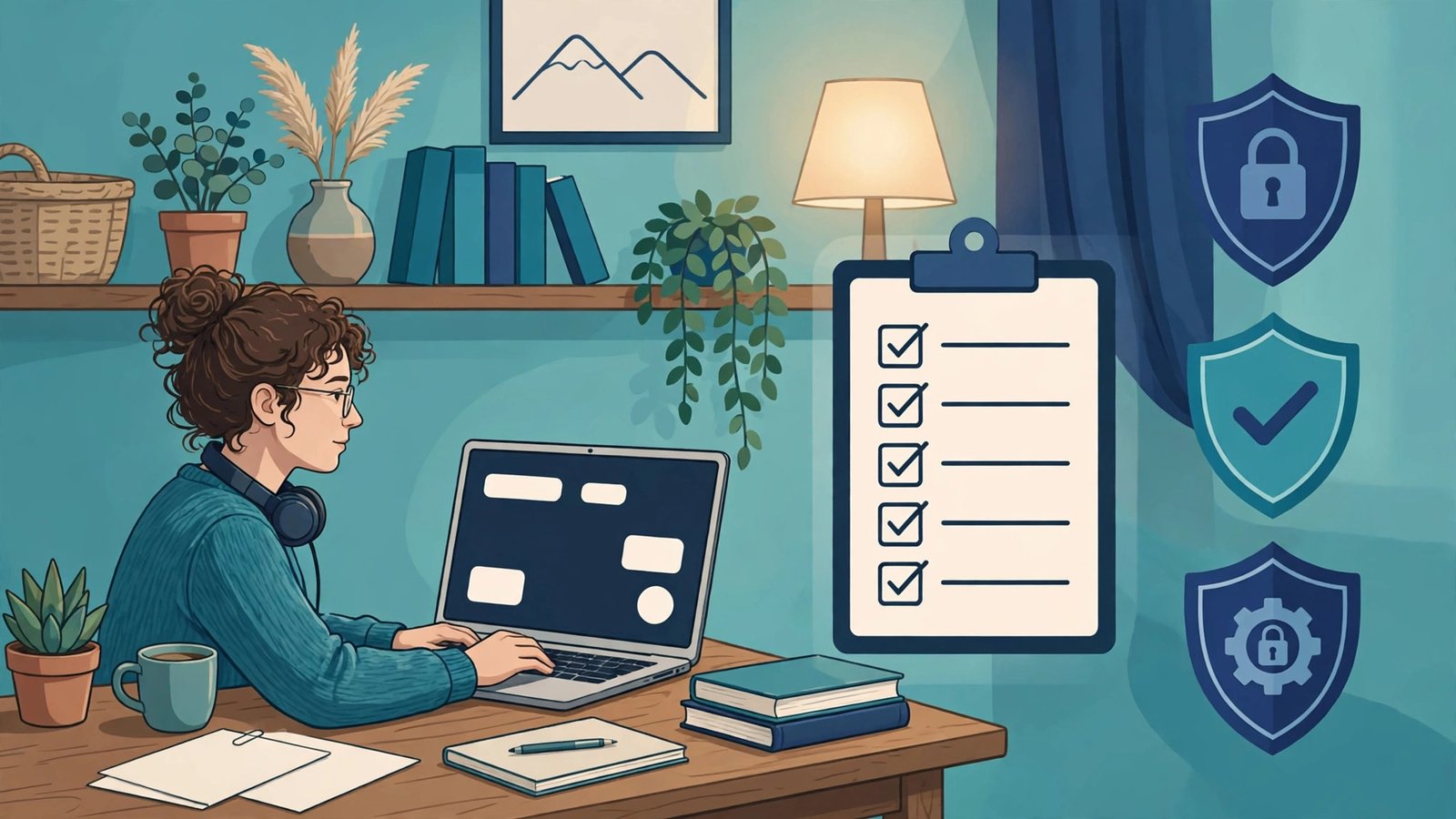
Working from home, a café, or a client’s office gives you freedom — but it also makes you your own IT department. There is no office security team down the corridor, no company firewall quietly protecting you, and no one else to blame if a client’s files are lost or your laptop is stolen. For remote workers and freelancers, a single incident can mean lost income, broken trust, and a damaged reputation that took years to build.
The good news is that strong protection does not require expensive tools or advanced skills. It requires a set of sensible habits, applied consistently. Use this checklist to secure your devices, accounts, network, and work files, then revisit it every few months as your work changes.
1. Secure Your Laptop and Phone First
Your devices hold your email, your files, and the keys to almost every service you use. Start here.
- Turn on automatic updates for your operating system, browser, and apps, and restart regularly so updates finish installing.
- Use a strong login on every device: a long PIN or password, plus fingerprint or face unlock where available.
- Set devices to lock automatically after a few minutes, and always lock them when you step away, even at home.
- Switch on device encryption, which scrambles your data if the device is lost or stolen. Most modern laptops and phones offer this in settings.
- Turn on find-my-device features so you can locate, lock, or wipe a lost device remotely.
- Install reputable security software and keep it updated, and remove apps and browser extensions you no longer use.
- Use a standard user account for daily work rather than an administrator account, to limit the damage harmful software can do.
2. Lock Down Your Accounts
Most attacks target accounts, not devices. Email is the top priority because it can reset almost everything else.
- Use a password manager to create a unique, long password for every account, and protect the manager itself with a strong master passphrase.
- Turn on two-factor authentication everywhere it is offered, starting with email, banking, accounting, cloud storage, and social media. Prefer an authenticator app or security key over text codes.
- Save backup codes safely in your password manager or printed and stored securely at home.
- Review signed-in devices and third-party access in your key accounts every few months, and remove anything you do not recognise.
- Close old accounts you no longer use, especially those holding payment details or personal information.
- Be alert to phishing: never enter passwords or codes from a link in an unexpected email or text. Go directly to the official app or website instead.
3. Make Your Home Wi-Fi Safe
Your home network is now your office network, so treat it that way.
- Change the router’s default admin password to a long, unique one. Default passwords are published online.
- Use a strong Wi-Fi password with current encryption, shown in settings as WPA2 or WPA3, and avoid sharing it widely.
- Keep router software updated, or enable automatic updates if offered. Very old routers that no longer receive updates should be replaced.
- Set up a guest network for visitors and smart home gadgets, keeping your work devices on the main network.
- Restart your router occasionally and check the list of connected devices for anything unfamiliar.
Working from cafés and shared spaces
Public Wi-Fi is convenient but risky. Avoid banking and sensitive client work on it where possible. Use your phone’s mobile data or personal hotspot instead, which is usually safer. If you must use public Wi-Fi, a reputable virtual private network, or VPN, encrypts your connection. Never accept unexpected prompts to install software or accept certificates to get online, turn off automatic connection to open networks, and confirm the exact network name with staff — scammers set up lookalike hotspots with trusted names.
4. Protect Files and Back Them Up Properly
Ransomware, theft, spilled coffee, and a failed hard drive all lead to the same question: do you have another copy?
- Follow the 3-2-1 rule: keep at least three copies of important files, on two different types of storage, with one copy off-site or in the cloud.
- Automate backups so they happen without you remembering. Manual routines fail during busy weeks, which is when you can least afford loss.
- Protect cloud storage with two-factor authentication, and check sharing settings. Client files should be shared with specific people, not with anyone who has the link, unless that is truly necessary.
- Test your backups by restoring a file every few months. A backup you have never tested is a hope, not a plan.
- Keep client data separate and organised, so you can delete it when a project ends or a client asks, in line with your agreement and local privacy rules.
- Encrypt sensitive files before sending them, and share passwords for protected files through a different channel from the file itself.
5. Communicate and Share Safely with Clients
Clients trust you with their documents, logins, and sometimes their customers’ information. Handle that trust visibly and carefully. Agree at the start of a project how files will be shared, which tools you will use, and who should have access. Never ask clients to send passwords in plain email, and never send your own that way; use a password manager’s secure sharing or a client’s approved system instead.
Be extra careful with payment changes. A common scam impersonates a supplier or client and asks for invoices to be paid to a new bank account. Confirm any change of bank details by phone using a number you already trust, not one in the email requesting the change. The same caution applies in reverse: tell clients how you will send invoices, so they can spot fakes pretending to be you.
6. Set Up Your Workspace Habits
- Position your screen so passers-by and visitors cannot read it, and use a privacy screen if you work in public often.
- Use headphones for calls in shared spaces instead of discussing client matters aloud.
- Keep paper secure too: lock away notes with passwords or client details, and shred documents you no longer need.
- Separate work and personal use where you can — ideally a work profile or account on your computer — so a risky personal download is less likely to affect client work.
- Have a simple incident plan: know how to change key passwords, contact your bank, and reach clients quickly if a device is lost or an account is compromised. Write the steps down before you need them.
Your Monthly 15-Minute Security Review
Security is not a one-time setup. Once a month, install pending updates and restart your devices, scan your password manager for weak or reused passwords, check backups and restore one test file, review signed-in devices, and remove cloud sharing access that is no longer needed. Every six months, review your incident plan and check that old client data is archived or deleted as agreed. Fifteen minutes on schedule prevents days of recovery later.
Frequently Asked Questions
Do freelancers really need a VPN?
A VPN is most useful on public or shared Wi-Fi, where it encrypts your connection. At home on your own secured network it is less essential. A reputable paid VPN is preferable to a free one, which may log or sell data.
What is the single most important step on this list?
Turn on two-factor authentication for your email, and use unique passwords through a password manager. Those two steps block the most common account takeovers. After that, make sure automated backups are running.
Can I use my personal laptop for client work?
Yes, if you secure it properly: keep it updated and encrypted, use separate user accounts or profiles for work, protect accounts with 2FA, and back up client files. Check client contracts too, as some require specific safeguards or company-managed devices.
What should I do first if my laptop is stolen?
Use find-my-device tools from another device to lock or wipe it, change your email and banking passwords, revoke signed-in sessions, and inform affected clients honestly and promptly. Report the theft to the police and your insurer if it is covered.
Conclusion: Small Habits, Professional Protection
You do not need an IT department to work safely. Secure your devices, lock down your accounts with unique passwords and two-factor authentication, make your Wi-Fi safe, back up properly, and handle client information with visible care. Work through this checklist today — start with updates, 2FA, and backups — then keep it alive with a short monthly review. Clients notice professionalism in how you protect their work, not just in the work itself.
Enjoying practical guides for digital professionals? Subscribe to Go Digital Professional for clear cybersecurity checklists, remote-work tips, and tech tutorials that help you work smarter and safer, wherever you are.